Factory Gauge
Factory gauges are used for automating logistic requests and production. For their conventional usage and the foundational concepts of higher logistics, see the in-game ponder. When placed in a factory controller, they operate in recipe mode.

Place and Monitor Item
Factory gauges need to be tuned to a logistics network before being placed in a factory controller. To do so, either interact with a stock link in the game world with the gauge in hand, or use the network selector in the dashboard UI to tune to a network that is already tuned to by another gauge in the factory controller.
Once placed, the new factory gauge needs to be configured with a monitored item. You may do so by clicking on the unconfigured gauge with an item in the cursor, or by opening the "set item" screen. Either way, you may also drag a ghost item from JEI or EMI to the filter slot.

Once an item is set, the gauge starts monitoring the number of items stored in the tuned logistic network that match the monitored item. This number is referred to as the storage amount. It is displayed as a label in the dashboard.

By default, the NBT data of the monitored item is respected  when calculating the storage amount. You can choose to ignore
  them in the "set item" screen. Caveats apply when NBT data is ignored.
Recipe Settings Screen
Clicking on a factory gauge with a monitored item set opens its recipe settings screen.

- ❶ Output
- The type and number of items this gauge is expected to produce. See Basic Production.
- ❷ Ingredients
- The types and numbers of ingredients required to produce the output.
- ❸ Custom arrangement button
- Click to arrange ingredients in a specific order. See Specify Ingredient Arrangement.
- ❹ Add connection button
- Click to add a connection to other factory gauges or other components.
- ❺ Relocate button
- Click to move the location of this gauge on the virtual board.
- ❻ Request interval
- Interval between each request, and option to change it. See Request Interval.
- ❼ Maximum request multiplier
- Option to automatically send multiple sets of ingredients in one request. See Dynamic Request Multiplier.
- ❽ Destination address
- The address to which the ingredients will be packaged and sent.
- ❾ Storage amount
- The storage amount of this factory gauge.
- ❿ Target stock amount
- The storage amount this factory gauge is configured to reach.
- ⓫ Item measure
- Unit of measurement of the target amount: Items/Stacks
- ⓬ Mode of operation
- How the target amount is set or determined. See On-Demand Production.
- ⓭⓮⓯ Promises
- Requests made by factory gauges awaiting their outputs, and options for limiting them. See Promise Limits.
- ⓰ Reset button
- Click to clear all configurations of this gauge, including the monitored item.
- ⓱ Confirm button
- Click to confirm the configurations, and close this screen.
Basic Production
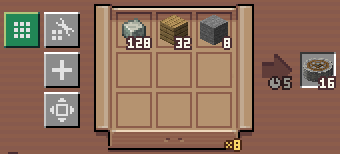
Beyond monitoring storage, the most basic usage of a factory gauge is to represent a recipe to produce an item, for example, smelting 1 raw iron into 1 iron ingot. The type of the output is the same as its monitored item. To define an ingredient, connect this gauge with another factory gauge monitoring some item, referred to as an ingredient gauge of this consumer gauge.
Click "add connection" (Figure 6 ❹) and then the ingredient gauge to connect to it. Each ingredient is shown as an item icon in ❷, on which clicking while holding shift disconnects the ingredient gauge.


In its default mode (⓬), a factory gauge repeatedly checks whether its storage amount (❾) is less than the configured target amount (❿⓫). If so, it makes a request for a set of ingredients (❷) to be sent from the networks of the ingredient gauges to the destination address (❽), expecting the output (❶) to later arrive in storage (❾).
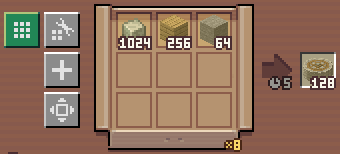
The recipe of a gauge defines the set of ingredients and their amounts sent per request (❷), as well as the type and number of output items expected (❶). The number of each ingredient may be adjusted by scrolling on ❷, and can be more than 1 stack, but the total number of all ingredients is limited to 9 stacks. The number of output items can also be adjusted by scrolling on ❶, limited to 64 stacks.
| Smelting raw iron to ingots in 32-item batches | 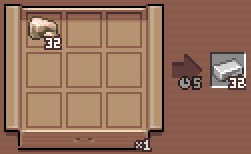 |
| Mixing concrete powder in 256-item batches | 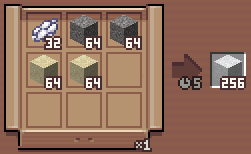 |
Each connection from a factory gauge to its ingredient gauge defines a separate ingredient in the recipe, even if their monitored items are identical.
The ingredient gauge’s configuration matters to the consumer gauge only as described in Place and Monitor Item. Whether an ingredient gauge produces the item or merely monitors it is irrelevant.
Mechanical Crafting
When the configured recipe in a factory gauge matches the item types of a mechanical crafting recipe, a "use mechanical crafting" button (Figure 7 ❶) is revealed. With this option toggled on, when packages created by this gauge are unpacked onto mechanical crafters, the ingredients are automatically arranged into the crafting pattern (❷).

The crafting recipe may be at most 10×10 in size. However, when it is larger than 3×3, ❷ no longer previews the pattern. Instead, hold ctrl while hovering to reveal a preview tooltip. Factory gauges that ignore NBT data may not be used as ingredients for crafting recipes larger than 3×3. If the ingredients of a large crafting recipe cannot be packed within 9 stacks, ❶ is not shown.

The mechanical crafters must be connected using a wrench and arranged in a square grid between 3×3 and 10×10 in size. Smaller recipes may be sent to larger mechanical crafter arrangements. Hold ctrl and scroll on the ingredients to adjust the crafting grid size to match the crafter arrangement they will be sent to.
It is recommended to use a repackager before unpacking onto mechanical crafters, see the in-game ponder on repackagers.
Batch Crafting
A factory gauge may be configured with a recipe whose amounts are multiples of a crafting recipe. With mechanical crafting turned on, scroll on an ingredient or output slot (Figure 9 ❶❷) to adjust the batch size, which is the number of times crafting can be performed as a part of this recipe. The number of ingredients (❷) and output (❶) are calculated automatically and cannot be adjusted individually.

Using a repackager is mandatory when batch crafting is used. When a repackager receives all packages created from a request, the contents are repackaged into multiple smaller packages, each containing ingredients to craft one time, which may then be unpacked onto mechanical crafters.
The maximum batch size is 64, regardless of the stack size of the output item. The maximum number of output items is consequently 64 × the number of outputs in the crafting recipe.

When using batch crafting, the total number of ingredients in a recipe may exceed 9 stacks, in which case the ingredients are split into multiple packages. This is allowed because the repackager outputs only packages containing ingredients to craft one time, not the entire recipe.
Specify Ingredient Arrangement
By default, when packages created by factory gauges are unpacked, the contents are not arranged in any specific order. Clicking Figure 11 ❶ enables custom arrangement, allowing the recipe to assign each ingredient to any of the 9 slots. This is similar to mechanical crafting, but the arrangements may be arbitrary, and are not limited to crafting recipes.

When custom arrangement is enabled, each ingredient in the recipe (❷) may be dragged with the left mouse button to be moved to another slot, or dragged with the right mouse button to be duplicated. The number of each duplicated item stack of one ingredient can be adjusted independently.
Using a repackager is required for the custom arrangement to take effect, even if one package already contains all the ingredients of a recipe. The ingredients are repackaged into one package, which can then be unpacked into any container block. Ingredients are unpacked into their assigned slot(s). In the example given by Figure 11, the sandpapers are unpacked into the 1st-3rd slots of the container, and the rose quartz are unpack into the 9th slot. The receiving end may then be set up to transfer the items in the 1st-3rd slots onto a deployer, and the items in the 9th slot under the deployer.

For unpacking to be possible, each item stack specified in ❷ must be unpacked into each of the first 9 slots of the target container. It may stack with existing items in the slot, if they are stackable and do not exceed the stack size. Item stacks do not overflow to another slot. The target container may have fewer than 9 slots, if the custom arrangement does not make use of the slots beyond what is available in the container.
A package with custom arrangement may be unpacked into any block supported by packagers. The contents are unpacked according to the number and order of slots made available by the target block. For example, such packages may be unpacked directly onto a vanilla crafter to perform batch crafting; but a package containing both a smeltable item and a fuel may not be unpacked onto a furnace, because a packager may only access one of the slots in the furnace depending on the side it is attached to.
On-Demand Production
By default, a factory gauge operates in  "maintain stock" mode, which activates (starts making requests) when the storage amount is below the configured target amount. By clicking Figure 13 ❷, you may switch it to
  "follow demand" mode, which additionally activates the gauge when there is downstream demand.

The downstream demand is calculated by observing all of its currently active consumer gauges, and calculating the total quantity of the item produced by this gauge defined in their recipes. The gauge activates when the storage amount is below either the demand or the minimum target stock amount (❶).

For example, to produce barrels, one may use 6 oak planks and 2 oak slabs. 6 slabs may be crafted from 3 planks, and 4 planks may be crafted from 1 log. The planks and slabs can be produced with gauges in "follow demand" mode:
- The gauge for slabs receives a demand of 2.
- The gauge for planks receives a demand of 9: 6 from barrels, 3 from slabs.
- First, 3 logs are crafted into 12 planks, then 3 of which are crafted into 6 slabs.
- After crafting 1 barrel, 3 planks and 4 slabs are left over.
Ordering from Stock Keeper
Another mode of the factory gauge,  "follow demand and order", additionally allows the item produceable by a gauge to be manually ordered from a stock keeper tuned to the same network. In the stock keeper UI, the recipe of each gauge in this mode appears as a production task, signified by a blueprint background.

See Production Orders for details.
Dynamic Request Multiplier
Normally, the amount of ingredients a factory gauge sends per request is fixed to what was defined in its recipe (Figure 16 ❷). Configuring the maximum request multiplier (❶) allows this gauge to automatically pack more ingredients per request as needed.

Scroll on ❶ to adjust its value. Left-click to set to the maximum allowed value, right-click to reset back to ×1.
With a maximum request multiplier ×N, the factory gauge automatically chooses to request up to N sets of ingredients from its recipe at once, this happens when:
- more products than ❸ are needed for the storage amount to reach the target amount; and
- sufficient ingredients are available from the ingredient gauges.
The value of the maximum request multiplier is limited to ×64, or by the amounts of ingredients and output after multiplying with the multiplier, whichever is less. These amounts may not exceed the usual limits applicable to a recipe. Hovering on ❶ temporarily displays the amounts after multiplying on ❷ and ❸.

| Recipe before and after multiplying | Maximum setting | Limiting factor |
|---|---|---|
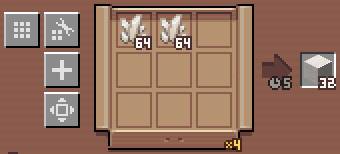 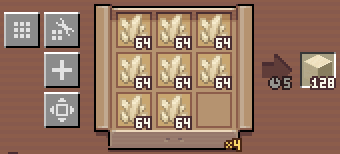 | ×4 | Ingredients exceeding 9 stacks |
  | ×8 | Batch size exceeding 64 (ingredients may exceed 9 stacks with batch crafting) |
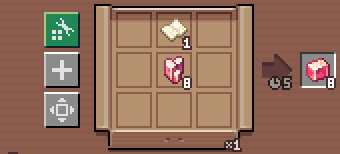 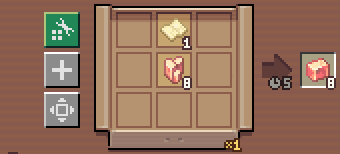 | ×1 | Ingredients overflowing to another slot (disallowed with custom arrangements) |
When the recipe is modified, the limit of the maximum request multiplier may decrease. The maximum request multiplier automatically adjusts in response.
To exclude an ingredient from multiplication, hold ctrl and click on it.
Request Interval
A factory gauge waits for a fixed amount of time after making a request before it can make the next one. This interval is generally controlled with a server setting of Create, and defaults to 5 seconds (❶).

You may scroll on ❶ to override the request interval of this factory gauge. It can be set to a value between 1 and 60 seconds. Click to reset the override and let this gauge follow the server setting.

While the request interval server setting is measured in ticks, the per-gauge override can only be set with the granularity of 1 second. Without an override, ❶ displays the server setting rounded to the nearest integer seconds.
Promise Limits
Each time a factory gauge makes a request, a promise is created (also referred to as a pending request). Each promise records the number of outputs expected to be produced, but have yet to arrive in storage. Before comparing the storage amount with the target amount, the number of items recorded in promises is added to the actual storage amount. Doing so stops the factory gauge from excessively sending ingredients before the outputs of previous requests arrive.

- ❶ Promised items
- Displays the total number of items recorded in promises created by all gauges in the same network producing the same item. Click to void all promises of the same item type.
- ❷ Expire time
- Scroll to set the time interval for a promise to expire after its creation. Can be 1 to 30 minutes. Promises never expire by default.
This option is useful when the recipe does not reliably produce the expected output, such as with recipes with probabilities. - ❸ Pending requests
- Displays the number of pending requests created by this gauge
 . Click to switch to displaying pending requests sent to the same address
  . In either state, scroll to set a limit on the displayed number. When the limit is reached, the gauge pauses sending new requests.
Limiting pending requests is useful for preventing excessive packages from overloading transportation lines.
Control Signals
Redstone
A factory gauge can be connected to some other components via redstone connections, such as with logical tubes and redstone links. When connected as the source, it outputs a redstone signal when the storage amount is equal to or greater than the target amount. When connected as the sink, the factory gauge is disabled when it is powered by redstone.

Additionally, when a factory controller block is redstone-powered, all factory gauges inside are disabled.
Number Connections
A factory gauge can also be connected to other components via number connections, such as with arithmetic tubes. When connected as the source, it outputs the storage amount. When connected as the sink, the input number is rounded down, and sets the target stock amount. Numbers from multiple input connections are added before rounding.

Fluid Transport
When you have a compatible fluid transportation mod installed, factory gauges placed in factory controllers may utilize that mod’s ability to transport fluids, and use fluids as ingredients or outputs.
| Mod | Compatibility |
|---|---|
| Create: Repackaged | Yes, using fluid gauge |
| Create: FluidLogistics ≥ 1.2.8 | Yes, using fluid factory gauge |
| Create: FluidLogistics < 1.2.8 | Yes, adds fluid capability to factory gauge |
| Create: Fluid | Yes, adds fluid capability to factory gauge (May drop support in the future) |
| Create Factory Logistics | No, will crash the game |
When using mods that add fluid gauges or fluid factory gauges, place one such gauge to monitor and produce fluids. Fluids may be set in the "set item" screen by clicking the filter slot while holding a bucket of fluid or by dragging a fluid entry from JEI.
When using mods that add fluid capability to regular factory gauges, they can then monitor and produce fluids. Fluids may be set in the "set item" screen by right-clicking the filter slot while holding a bucket of fluid or by dragging a fluid entry from JEI.
Fluids do not contain NBT data, therefore when monitoring a fluid, the option to ignore NBT data disappears.
When using a fluid as an ingredient or output, scrolling on the ingredient or output UI adjusts the amount by 1 B. Hold shift while scrolling to adjust by 10 mB, or hold ctrl while scrolling to adjust by 1 mB. The output is limited to 64 B per batch.
Ignore Item NBT Data
A factory gauge may be configured in the "set item" screen to ignore the NBT data of its monitored item. When it is ignored, all items of the same type as the monitored item are counted towards the storage amount, regardless of their NBT data.
Items with different NBT data do not stack. Therefore, when an ingredient gauge ignores NBT data, the consumer gauge may receive the ingredient in more stacks than what appears in the recipe. If the total number of items in a request exceeds 9 stacks, the items are split into multiple packages.
If either mechanical crafting or custom arrangement is enabled, the behaviour is different. Each item stack defined in the recipe must consist of items with identical NBT data. For a unique set of NBT data possessed by N items in storage, items with this set of NBT data are only sent if N is sufficient to fill one ingredient stack.